If you start noticing 100 % –CPU Usagefor prolonged period of time and the Horizon Session getting disconnected from time to time after launch then you might need to include the following exclusion within your Writable Volumes (UIA+Profile) snapvol.cfg file:
I hope you will find these exclusion useful and will help you resolve a similar issue a lot quicker. A big thanks to Art Rothstein in helping to troubleshoot and resolve the issue.
If you have a VMware VSAN environment and you wanted to capture a memory dump of the Virtual Machine for debugging or want to provide memory.dmp to VMware GSS or R&D for further analysis go ahead and read further!
Use Case – In our scenario had a few VDI Desktops running Windows 10 1607 + Horizon 7.3.1 + App Volumes Writable Volumes 2.13.1 + UEM 9.2.1 that were getting into unresponsive state. As a last resort we wanted to capture the memory dump to find out more what is causing the VM to get unresponsive.
Step by Step Instructions:
— Using the vCenter console select the Virtual Machine VM – Power – Suspend
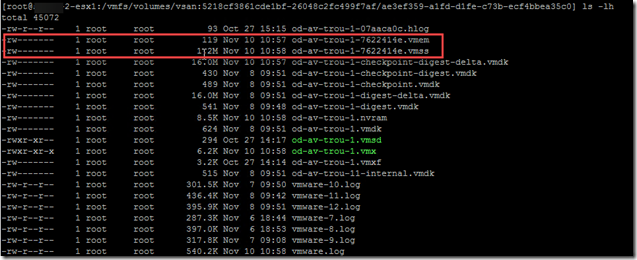
— This will create the *.vmss and *.vmem file for Debugging. (Note the *.vmem file is applicable for ESXi 6.0 onwards) — Make a note of the ESXi host Name/IP for the VM is in Suspend state
— SSH to the ESXi Host and browser to the VM Directory location:
# cd /vmfs/volumes/vsanDatastore/od-av-troub-1 (Where “od-av-troub-1” is the VM name)
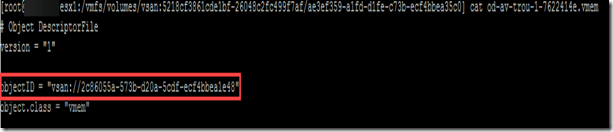
— Now lets open the *.vmem file using “cat” command to retrieve the Object ID information. Make a note of the ObjectID
# cat od-av-trou-1-7622414e.vmem
— In my scenario the Object ID was properly pre-created I didn’t have to use the objtool to find out the Object opened. However, in some cases you might have to run the following command
— Now using WINSCP login to the same ESXi Host and go the path: Object ID – /vmfs/device/vsan/2c86055a-573b-d20a-5cdf-ecf4bbea1e48 (my scenario) Or/else Object opened at path and download the file “2c86055a-573b-d20a-5cdf-ecf4bbea1e48” which is your ”*.vmem file and move the files to local or remote location that you are using the WINSCP tool. — Rename the Object ID to a friendly name shown in the VM Directory Folder. I renamed it (od-av-trou-1-7622414e.vmem)
— For the *.vmss (od-av-trou-1-7622414e.vms) you can directly WINSCP to the ESXi Host and go to the location in the table and move the files to your local or remote location
— Once you have both the files *.vmem and *.vmss you can use a VMware Vmss2core Fling and convert it to a dump. Please make sure you meet the requirements and use the appropriateswitches to your environment
— The above command will generate a memory.dmp file which can used in WINDBG for further analysis. If you are sending the dump file to someone make sure use *.zip and compress it before sending.
I hope you will find these steps useful and save a lot of time during daunting unresponsive VM issues. A big thanks to Frank EscarosBuechsel to helping with the entire procedure.
If you are using F5 LTM in the DMZ to load balance (LB) the VMware Unified Access Gateway (UAG) appliance, it is very important to use the iAPP or the F5 Deployment guide to set the Persistence Profile options properly or/else you might end up with issues.
Background:
The F5 LTM VIP for UAG Appliance was created manually without using the f5_vmware_viewiApp and the Persistence Profile settings were manually configured. (I highly recommend to use the iApp and go through the F5 deployment guides)
Issue1:
The BLAST connection fails in the backend. The original SessionID request was going to UAG1 and due to the LB in the front the next request for the same SessionID was going to UAG2.
As noted above the SessionID is the same but the initial BLAST connection request is going to different UAG appliance instead of going to the same appliance which it originally initiated.
Issue2: You might time to time receive an Error Message “Your session has expired. Please re-connect the server” while entering the username, password and 2-factor authentication details on UAG landing page. It has to do with the timeout value on the F5 persistence profile – Source IP Address
Solution: Whenever you have F5 LTM as the Load Balancer in front of UAG make sure you handle these three settings carefully to not run into the above described issue:
Timeout Value: Specifies the duration of the persistence entries. This value should match the Horizon Administrator(Global Settings – View Administrator session timeout) time out value. The default value set on the F5 LTM is 180 seconds = 3 mins
Example – If the View Administrator session timeout is 480 mins
Then we should set the same value under the F5 Timeout value in seconds
Mirror Persistence: If the active unit goes into the standby mode, the system mirrors any persistence records to its peer.
We had this option un-check as it was a manually configured persistence profile
Match Across Services: All persistent connections from a client IP address that go to the same virtual IP address also go to the same node. The default is disabled
We had this option un-check as it was a manually configured persistence profile
How does the overall Persistence of the profile look:
If you are using the F5 Horizon iApp for the configuration of the UAG VIP then you might not end-up with the above issue.
I hope you find these tips useful during the F5 LTM VIP creation for VMware Unified Access Gateway Appliance.
If you have deployed Horizon TrueSSO feature within your environment. Then the most obvious question is how do you troubleshoot during issues? Let me give you some tips and tricks around troubleshooting TrueSSO aka Enrollment Server feature:
If you have two teams split one team managing the Active Directory/Certificate Services and other team managing Horizon infrastructure. Then following are the tips for the Horizon Admins. Install the Microsoft RSAT tools on your domain joined machine or Enrollment Servers and install the AD Certificate Services Tools. This will provide you the ability to see the following snap-ins in read-only mode:
Enterprise PKI – Allows you to check the CDP and CRL and Issuing CA Status
Certificate Templates – TrueSSO, Enrollment Agent (Computer) Templates etc.
Make sure to Enable the Trace logging on the Enrollment Servers and Horizon Agent (within master image) during troubleshooting. It will provide additional details on the error message
How to know whether the end-users logged in via TrueSSO – Interactive_SmartCard_Logon will be visible in the Horizon Agent (if Trace Log is enable)
If TrueSSO is not used and SAML – CLEAR(Text)_PASSWORD is used you will receive the following in Horizon Agent logs (if trace is enable
If you have two Issuing CA’s for High Availability and redundancy then make sure you import the TrueSSO template by Clicking Certificate Templates > New > Certificate Template to Issue. Select “TrueSsoTemplate” from the “Enable Certificate Templates” dialog and press “OK.” on the other Issuing CA. If you skip this step it will complain in Horizon Administrator dashboard – The primary and secondary enrollment server is not connected to the certificate servers “XXXXXX”
Read and learn to use the VMWare Fling es_diag.exe it will provide a lot of information from the Horizon Enrollment Server stand point and equip you to troubleshoot issues with Certificate Servers.
/ListConfigs
/ListEnvironment
/EnrollmentTest
My colleague Tarique Chowdhury has posted few troubleshooting steps in the following post under Section – Testing it will provide more details as to what to look in the logs.
I hope you find this post useful during the Horizon TrueSSO aka Enrollment Server troubleshooting.
Recently got an opportunity to deploy the VMware Horizon TrueSSO within our environment. TrueSSO provides user with the True SSO (single sign-on) feature, after users log in to VMware Identity Manager (WorkSpaceOne) using a RSA SecurID authentication(optional), users are not required to enter Active Directory credentials in order to use virtual desktop or hosted application.
Let me share my top 10 lessons learnt from the deployment:
In the production deployment recommend to size the Enrollment Server Windows VM as same as the Connection Server(ES role is not very resource intensive)
CPU – 4 vCPU
Memory – 10 GB RAM
HDD – 80 GB
Make sure the “Group Scope” is selected as “Universal” for the Active Directory Group in which the Enrollment Server – Computer Account is added
On the newly created TrueSSO template (SmartCard Login and Client Authentication) make sure under the Security Tab “Authenticated Users” group has Read permissions and The Active Directory group for the Enrollment Servers (Computer Account) has Read and Enroll
If you are deploying more than one Enrollment Server go in the Horizon ADAM database and add the following value to load balance between two Enrollment Servers: cs-view-certsso-enable-es-loadbalance=true
For Large scale AD deployments, it is recommend to add the registry for “ConnectToDomains”=domainname.com HKEY_LOCAL_MACHINE\SOFTWARE\VMware, Inc.\VMware VDM\Enrollment Service
Make Sure the template to be used for TrueSSO, you have selected the check box “Do not store certificate and request in the CA database” and run the following command on the CA server. (without quotes) “certutil –setreg DBFlags +DBFLAGS_ENABLEVOLATILEREQUESTS”
To support Smartcard Logon the following Requirements must be met by the Domain Controller or Kerberos Authentication Certificate:
Template name should be Domain Controller or Kerberos Authentication Certificate
DNS Name should be selected under Subject Name
Key Usage Extension should be “Digital Signature” and “Key Enciphement”
Make sure the the CA issuing Domain Controller Certificates has the following requirements met (Use GPO’s to deploy the below)
Add the Root Certificate to the Enterprise NTAuth Store
Add the Root Certificate to Trusted Root Certification Authorities
Add an Intermediate Certificate to Intermediate Certification Authorities
On the Domain Controllers under the registry location HKEY_LOCAL_MACHINE\SOFTWARE\Microsoft\EnterpriseCertificates\NTAuth\Certificates A key with the “Issuing CA Certificate” thumbprint needs to be created on all the domain controllers participating in the TrueSSO. Ideally if the Step 7&8 are done correctly you should not run into this problem. (In our case we had to open-up a Microsoft Case to get this resolved as we were receiving KDC errors.)
My colleague Tarique Chowdhury has written three awesome blog post on the TrueSSO feature make sure to check them out:
With a lot of enterprises in the middle of the WannaCry and NoPetya vulnerability. If you are running a enterprise VDI environment the fix is pretty simple. Just target your Master VM or Golden Master images and run the Windows Update. Once you have updated the image simply Recompose or Push-Image the desktops pools with the latest updates. Your environment is quickly secured! These vulnerability reiterate the importance of regular patching within the production environments for your Core infrastructure + Master Images.
A quick and easy way to scan your environment is using a free EternalBlue vulnerability scanner. – http://omerez.com/eternalblues/
Simply download the scanner and launch it on a Windows VM of your choice on Windows 7/8.1/10.
IP Range: The tool by default tends to select the /24 subnet. However, if you have a bigger subnet like a /19 to scan simply enter the Start and End of the entire subnet range. In this example its a 192.168.0.0/19. It will scan for 8190 IP addresses.
I hope you scan your environment ASAP! Get rid of the vulnerability ASAP!
While creating a RDSH Farm in Horizon 7.2 using View Composer – Linked Clones and Custom Specification Manager the creation would fail on “Customization” within the View Administrator console. Upon investigation within the vCenter the Windows Servers 2012 R2 RDS Session host VM’s where not getting a valid IP and receiving the169.x.x.x APIPA addresses.
After researching quite a bit the most common solution to the problem was:
Un-install and re-install vmwaretools
Un-install and re-install Horizon Agent 7.2 on RDS Master Image
After performing the above two steps the issue completely changed from getting 169.x.x.x APIPA address to a proper DHCP server routable address. However, we are getting a different error this time:
“Windows could not finish configuring the system after a generalized sysprep”.
Final Solution
Within the master image we were using the MacAfee VSE Agent Patch 7 as the antivirus protection. This particular version was causing the issue with the sysprep to fail during customization.
After following the below MacAfee KB and installing VSE Patch 9 the error was resolved and customizing of the RDS VM as per the Custom Specification Manager was successful.
With the latest version of App Volumes 2.12.1, you don’t have to uninstall the older version of App Volumes Manager. The latest App Volumes Manager 2.12.1 installer takes care of uninstalling, fresh-install and retain all the configuration details and settings automatically for you.
During the upgrade I encountered the following error:
“Error 1303. The installer has insufficient privileges to access this directory: C:\Program Files(x86)\CloudVolumes\Manager\log. The installation cannot continue. Log on as an administrator or contact your system administrator.”
Resolution: In our scenario we have VMware vRealize Log Insight Agent installed on the App Volumes Manager VM’s which is doing Syslog. The Log Insight agent captures the logs(production.log) inside the folder “C:\Program Files(x86)\CloudVolumes\Manager\log”. As the service is in the running state, it didn’t allow the folder to delete and left a ghost folder on the filesystem.
After going into the services.msc and stopping the VMware vRealize Log Insight Agent service and click Retry, the setup manages to complete the upgrade successfully.
I hope this workaround helps you during your upgrade if you encounter a similar error message.
Folks, I have submitted a session for the VMworld 2017. If you would like to see them go on stage then please vote!
My Session: The secret sauce behind VMware’s internal Horizon desktop deployments [1255] Ever asked yourself “How does VMware architect their own global Horizon desktop environment?”, “Have they encountered the same obstacles we are facing?” Over the past two years VMware has been re-architecting and re-deploying their virtual desktop infrastructure with Horizon, App Volumes and User Environment Manager (UEM) running on top of the full VMware SDDC stack (vSphere, VSAN, NSX) and integrating with vRealize Operations Manager and Log Insight. In this session the lead architects will reveal all.
If you using VMware UEM for applying ADMX-based Setting and want detailed verbose logs on ADMX then then you will have to add an additional advanced settings in the NoAD.xml file.
Background: We were applying an ADMX setting (Desktop Background Wallpaper) and it wasn’t applying on the virtual desktop. The informational logging was not sufficient in deriving the root cause of the issue. Why the AMDX setting was getting skipped? After enabling the verbose logging it started logging additional information that was helpful in arriving to a conclusion.
Solution (NoAD.xml) Located under \\FileShare\General\FlexRepository\NoAD subfolder.
Setting
XML Attribute
Comments
Enable verbose logging for ADMX-based settings, application blocking, and Horizon policies
AdmxLogging=”1″
Set to 1 to configure
Screenshot of the NoAD.xml file:
After enabling the setting you will see an additional file called FlexEngine-ADMX.log in the logs folder which will capture all the verbose logging.








Recent Comments