If you have a VMware VSAN environment and you wanted to capture a memory dump of the Virtual Machine for debugging or want to provide memory.dmp to VMware GSS or R&D for further analysis go ahead and read further!
Use Case – In our scenario had a few VDI Desktops running Windows 10 1607 + Horizon 7.3.1 + App Volumes Writable Volumes 2.13.1 + UEM 9.2.1 that were getting into unresponsive state. As a last resort we wanted to capture the memory dump to find out more what is causing the VM to get unresponsive.
Step by Step Instructions:
— Using the vCenter console select the Virtual Machine VM – Power – Suspend
— This will create the *.vmss and *.vmem file for Debugging. (Note the *.vmem file is applicable for ESXi 6.0 onwards)
— Make a note of the ESXi host Name/IP for the VM is in Suspend state
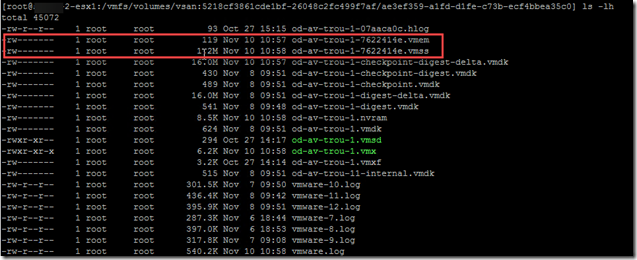
— SSH to the ESXi Host and browser to the VM Directory location:
| # cd /vmfs/volumes/vsanDatastore/od-av-troub-1 (Where “od-av-troub-1” is the VM name) |
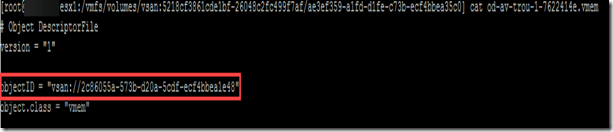
— Now lets open the *.vmem file using “cat” command to retrieve the Object ID information. Make a note of the ObjectID
| # cat od-av-trou-1-7622414e.vmem |
— In my scenario the Object ID was properly pre-created I didn’t have to use the objtool to find out the Object opened. However, in some cases you might have to run the following command
— Now using WINSCP login to the same ESXi Host and go the path:
Object ID – /vmfs/device/vsan/2c86055a-573b-d20a-5cdf-ecf4bbea1e48 (my scenario)
Or/else Object opened at path and download the file “2c86055a-573b-d20a-5cdf-ecf4bbea1e48” which is your ”*.vmem file and move the files to local or remote location that you are using the WINSCP tool.
— Rename the Object ID to a friendly name shown in the VM Directory Folder. I renamed it (od-av-trou-1-7622414e.vmem)
— For the *.vmss (od-av-trou-1-7622414e.vms) you can directly WINSCP to the ESXi Host and go to the location in the table and move the files to your local or remote location
— Once you have both the files *.vmem and *.vmss you can use a VMware Vmss2core Fling and convert it to a dump. Please make sure you meet the requirements and use the appropriate switches to your environment
| # vmss2core -W8 od-av-trou-1-7622414e.vmss od-av-trou-1-7622414e.vmem |
— The above command will generate a memory.dmp file which can used in WINDBG for further analysis. If you are sending the dump file to someone make sure use *.zip and compress it before sending.
I hope you will find these steps useful and save a lot of time during daunting unresponsive VM issues. A big thanks to Frank EscarosBuechsel to helping with the entire procedure.
Thanks,
Aresh Sarkari


Thrilled you desire sensible business online guidelines keep wearing starting tools suitable for the particular web-based business. cash 4tb external hard drive