At Microsoft Build 2026, Microsoft announced a new developer-focused experience for Windows 365 a Windows 11 Developer Configuration gallery image designed to give developers a Cloud PC that is much closer to ready to code from the first sign-in.
Instead of provisioning a clean Windows Cloud PC and then spending considerable time installing VS Code, Git, Python, Node.js, WSL, command-line tooling and all the other pieces normally required for a developer workstation, Microsoft now provides a preconfigured Windows 365 gallery image with many of these components already installed.
The Developer Configuration image is currently Public Preview and is available for Windows 365 Enterprise and Windows 365 Flex Dedicated mode. Microsoft explicitly states that the image isn’t intended for production workloads while it remains in preview.
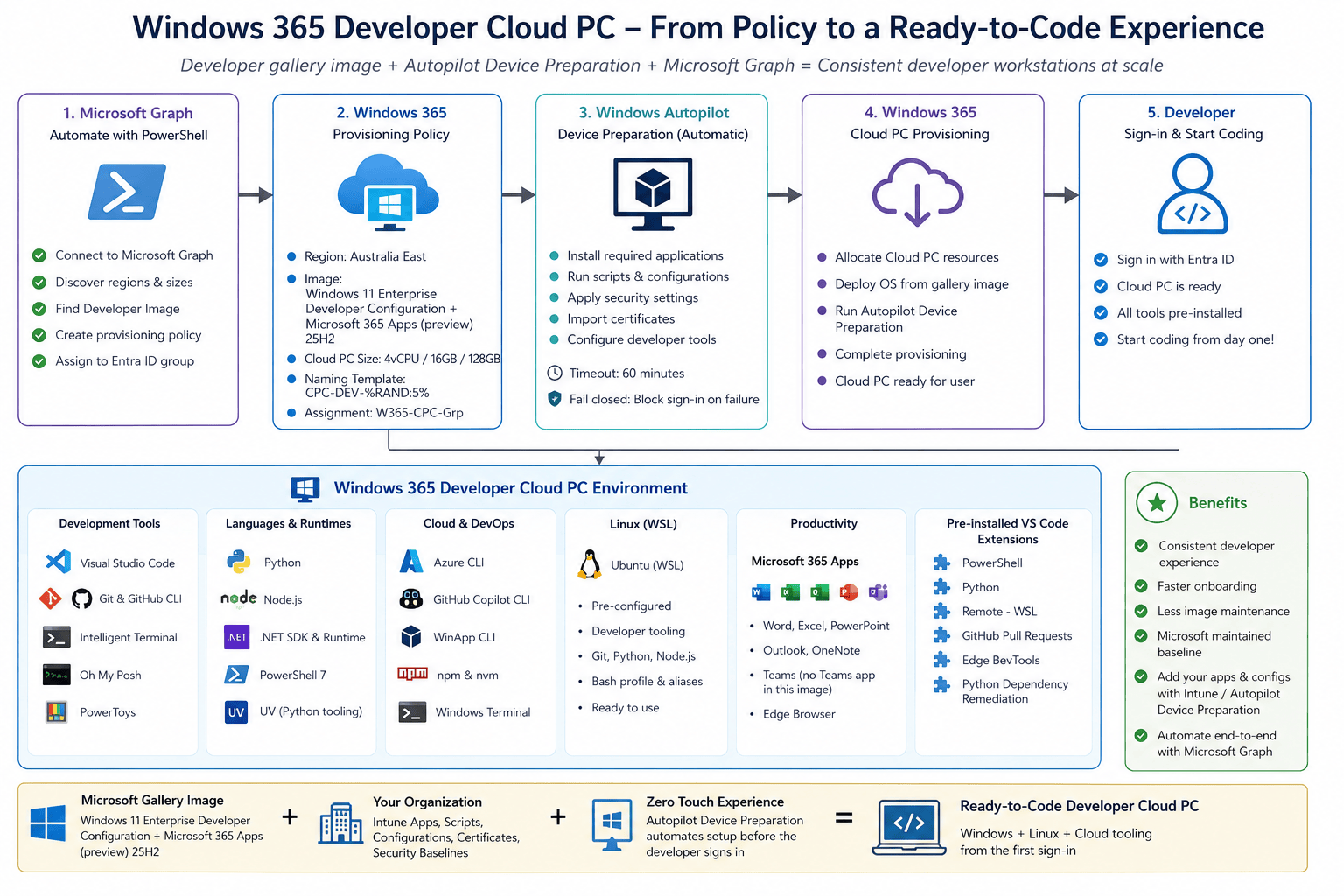
Naturally, instead of only creating the provisioning policy through the Intune portal, I wanted to see what the experience looked like through Microsoft Graph and PowerShell.
In this post I’ll cover:
- What the Windows 365 Developer Configuration image actually is
- A few important things to understand
- Developer Image VS Custom Image
- Creating the Windows 365 provisioning policy with PowerShell
- Provisioning the Developer Cloud PC
- Looking inside the Cloud PC to see what Microsoft preinstalled
What is the Windows 365 Developer Configuration image?
The idea is fairly simple.
A traditional Windows 365 gallery image gives you either:
- Windows Enterprise
- Windows Enterprise + Microsoft 365 Apps
The new developer image adds another starting point:
Windows Enterprise + Microsoft 365 Apps + a preconfigured developer environment.
Microsoft announced the image at Build 2026 as part of its broader Windows 365 investment for developer workloads. The goal is to reduce the repetitive workstation preparation that normally occurs when onboarding a developer, rebuilding their machine, or moving them onto a new project.
The important distinction here is that this isn’t a custom image that I built and uploaded. It is a Microsoft-maintained Windows 365 gallery image. That means the provisioning experience is exactly the same basic Windows 365 model we already know, but the starting operating system contains a substantially larger developer toolchain.
My mental model: Think of it as Microsoft’s Windows 365 equivalent of a developer workstation baseline – Windows, Microsoft 365 Apps, WSL and the commonly used development tooling already baked into the gallery image.
A few important things to understand
There are several caveats worth highlighting before anyone starts replacing their developer workstation strategy with this image.
1. The Developer Configuration image is still Public Preview
Microsoft explicitly states that the Developer Configuration gallery image isn’t currently intended for production workloads.
So for now I would treat this as something to evaluate, validate and design around rather than immediately rolling it out to every production developer.
2. Microsoft doesn’t manage all those third-party applications for you
Although Microsoft supplies the developer tools in the image, the customer remains responsible for managing and maintaining third-party applications, including vulnerability management, security updates and compliance.
A preinstalled application does not automatically mean a fully managed application.
3. Preinstalled third-party applications aren’t currently packaged Intune apps
Microsoft specifically notes that the third-party tools baked into the image aren’t currently manageable through Intune as packaged applications.
If your organisation requires full Intune application lifecycle management, Microsoft recommends removing the preinstalled versions and redeploying those applications through Intune.
That is something I would definitely evaluate before enterprise adoption.
4. Gallery images move forward
Microsoft refreshes supported Windows 365 gallery images monthly.
That is great from a security and freshness point of view, but it also means:
Test the image, don’t assume it is immutable.
If a development team depends on very specific Python, Node, SDK or extension versions, proper version management is still required.
Developer image vs custom image
I don’t think the new Developer Configuration image means custom Windows 365 images suddenly disappear.
| Requirement | Developer gallery image | Custom image |
|---|---|---|
| Standard developer tools | Excellent | You maintain them |
| Fast starting point | Excellent | Depends on image pipeline |
| Microsoft-maintained Windows baseline | Yes | No |
| Internal applications | Add via Intune / Device Prep | Bake into image if required |
| Very specific tool versions | Additional management required | Full control |
| Highly specialised development stack | Limited | Excellent |
| Image engineering overhead | Low | Higher |
| Developer onboarding consistency | Strong | Strong if well managed |
For many organisations, I suspect the sweet spot will be:
Microsoft Developer Gallery Image + Intune + Autopilot Device Preparation
rather than building an enormous custom developer image from scratch.
Creating the provisioning policy with PowerShell
Now we have everything we need:
- Developer gallery image
- Region
- Cloud PC SKU
- Entra ID assignment group
- Windows language/locale
- Device naming convention
I created the provisioning policy using Microsoft Graph.
My policy is called:
W365-Developer-SKU-Image
and my device naming template is:
CPC-DEV-%RAND:5%
The important image configuration is:
Image Type : galleryImage ID :microsoftwindowsdesktop_windows-ent-cpc_win11-25h2-ent-cpc-devready
I’ll provide the complete PowerShell script below so you can modify the variables for your own environment.
PowerShell Script
Link GitHub – avdwin365mem/CloudPC-Prov-DevImage.ps1 at main · askaresh/avdwin365mem
############################################################################################## Windows 365 Dedicated Cloud PC Provisioning Policy via PowerShell# Entra Join + Single Sign-On + Automatic (Recommended) Region + Dev Box Gallery Image# Comment or Un-comment the components that do not apply to your environment## Only requires the Microsoft.Graph.Authentication module - all work is done with raw# Graph calls so the heavier SDK sub-modules are never loaded.#############################################################################################$ErrorActionPreference = "Stop"#---------------------------------------------------------------------------------------------# STEP 0 - Module + Authentication#---------------------------------------------------------------------------------------------# Install once if needed:# Install-Module Microsoft.Graph.Authentication -Scope CurrentUser -ForceImport-Module Microsoft.Graph.Authentication# Set your tenant explicitly - avoids home-tenant guessing and some consent failures$TenantId = "dXXXX146-4eXX-4XX4-8XXX-fe79XXXXX5"Connect-MgGraph -TenantId $TenantId -Scopes "CloudPC.ReadWrite.All","Group.Read.All"# If Connect-MgGraph throws AADSTS650051, see the troubleshooting block at the bottom.# Hard stop if we are not actually connected - prevents the rest of the script running blind$ctx = Get-MgContextif (-not $ctx) { throw "Not connected to Microsoft Graph. Resolve the sign-in error before continuing." }Write-Host "Connected as $($ctx.Account) to tenant $($ctx.TenantId)" -ForegroundColor Cyan# Confirm you hold the Cloud PC RBAC permissions before you startInvoke-MgGraphRequest -Method GET -OutputType PSObject ` -Uri "https://graph.microsoft.com/beta/deviceManagement/virtualEndpoint/getEffectivePermissions"#---------------------------------------------------------------------------------------------# STEP 1 - Discovery (optional, but confirms your inputs are valid in THIS tenant)#---------------------------------------------------------------------------------------------# 1a. What Cloud PC SKUs have you actually purchased?(Invoke-MgGraphRequest -Method GET -OutputType PSObject ` -Uri "https://graph.microsoft.com/beta/deviceManagement/virtualEndpoint/retrievePurchasedServicePlans?`$select=id,displayName,type,vCpuCount,ramInGB,storageInGB,userProfileInGB,category,supportedSolution,provisioningType").value | Format-Table displayName, vCpuCount, ramInGB, storageInGB -AutoSize# 1b. Which regions are available? Grab exact regionName / regionGroup strings here.(Invoke-MgGraphRequest -Method GET -OutputType PSObject ` -Uri "https://graph.microsoft.com/beta/deviceManagement/virtualEndpoint/supportedRegions?`$filter=supportedSolution%20eq%20%27windows365%27&`$select=id,displayName,regionStatus,regionGroup,geographicLocationType").value | Format-Table id, displayName, regionGroup, regionStatus -AutoSize# 1c. Gallery images - confirm the imageId below exists and is 'supported' in this tenant.(Invoke-MgGraphRequest -Method GET -OutputType PSObject ` -Uri "https://graph.microsoft.com/beta/deviceManagement/virtualEndpoint/galleryImages").value | Where-Object { $_.status -eq "supported" } | Format-Table id, displayName, status -AutoSize# 1d. Custom (uploaded) images - use these instead if imageType = "custom"# (Invoke-MgGraphRequest -Method GET -OutputType PSObject `# -Uri "https://graph.microsoft.com/beta/deviceManagement/virtualEndpoint/deviceImages").value |# Format-Table id, displayName, status, osBuildNumber -AutoSize# 1e. Only needed for Hybrid Entra Join. Skip entirely for Entra Join (this script).# (Invoke-MgGraphRequest -Method GET -OutputType PSObject `# -Uri "https://graph.microsoft.com/beta/deviceManagement/virtualEndpoint/onPremisesConnections?`$select=id,displayName,healthCheckStatus,adDomainName").value |# Format-Table id, displayName, healthCheckStatus -AutoSize#---------------------------------------------------------------------------------------------# STEP 2 - Build the Provisioning Policy body#---------------------------------------------------------------------------------------------$params = @{ displayName = "W365-Developer-SKU-Image" description = "A Cloud PC for the Developers" # dedicated = 1:1 Cloud PC per user. # Alternatives: sharedByUser | sharedByEntraGroup (Frontline) provisioningType = "dedicated" # cloudPc = full desktop. Alternative: privateCloudPc userExperienceType = "cloudPc" # windows365 = licence-based W365. Alternative: devBox managedBy = "windows365" #----------------------------------------------------------------------------------------- # Image - verify this ID appeared in the Step 1c output before running. # Swap imageType to "custom" and use a deviceImages ID for your own uploaded image. #----------------------------------------------------------------------------------------- imageId = "microsoftwindowsdesktop_windows-ent-cpc_win11-25h2-ent-cpc-devready" imageDisplayName = "Windows 11 Enterprise Developer Configuration + Microsoft 365 Apps (preview) 25H2" imageType = "gallery" #----------------------------------------------------------------------------------------- # Microsoft Managed Desktop / Windows 365 Enterprise management #----------------------------------------------------------------------------------------- microsoftManagedDesktop = @{ type = "notManaged" profile = $null } #----------------------------------------------------------------------------------------- # Single Sign-On - requires the Entra Kerberos / SSO prerequisites to be in place #----------------------------------------------------------------------------------------- enableSingleSignOn = $true #----------------------------------------------------------------------------------------- # Entra Join with AUTOMATIC region selection inside the Australia/New Zealand geography. # To pin a region instead: regionGroup = "australia"; regionName = "australiaeast" # and drop geographicLocationType. #----------------------------------------------------------------------------------------- domainJoinConfigurations = @( @{ type = "azureADJoin" geographicLocationType = "australiaNewZealand" regionGroup = "automatic" regionName = "automatic" } ) # Hybrid Entra Join variant - comment out the block above and use this instead: # domainJoinConfigurations = @( # @{ # type = "hybridAzureADJoin" # onPremisesConnectionId = "<connection-id-from-step-1e>" # } # ) windowsSettings = @{ language = "en-US" } #----------------------------------------------------------------------------------------- # Naming template. %RAND:x% where x is 5-11. Total name must stay <= 15 chars. # "CPC-DEV-" (8) + 5 random = 13 chars. Safe. #----------------------------------------------------------------------------------------- cloudPcNamingTemplate = "CPC-DEV-%RAND:5%" # Scope tags. "0" is the built-in Default scope - omit this line entirely to inherit it. scopeIds = @("0") # Windows Autopatch - $null means no Autopatch group assigned autopatch = @{ autopatchGroupId = $null } # User settings persistence - only meaningful for shared/non-dedicated types. # NOTE: the top-level userSettingsPersistenceEnabled is flagged deprecated by Graph # (sunset advertised via response Link headers). Use the nested configuration object. # userSettingsPersistenceEnabled = $false userSettingsPersistenceConfiguration = @{ userSettingsPersistenceEnabled = $false userSettingsPersistenceStorageSizeCategory = "sixteenGB" } # Autopilot device preparation - not used here autopilotConfiguration = $null}#---------------------------------------------------------------------------------------------# STEP 3 - Create the policy#---------------------------------------------------------------------------------------------$policy = Invoke-MgGraphRequest -Method POST -OutputType PSObject ` -Uri "https://graph.microsoft.com/beta/deviceManagement/virtualEndpoint/provisioningPolicies" ` -Body ($params | ConvertTo-Json -Depth 10) -ContentType "application/json"if (-not $policy.id) { throw "Policy creation returned no ID - stopping before assignment." }Write-Host "Created provisioning policy: $($policy.displayName) [$($policy.id)]" -ForegroundColor Green#---------------------------------------------------------------------------------------------# STEP 4 - Assign the policy to an Entra security group#---------------------------------------------------------------------------------------------# Option A - resolve by display name$groupName = "W365-CPC-Grp"$filterEnc = [uri]::EscapeDataString("displayName eq '$groupName'")$group = (Invoke-MgGraphRequest -Method GET -OutputType PSObject ` -Uri "https://graph.microsoft.com/v1.0/groups?`$filter=$filterEnc&`$select=id,displayName,securityEnabled,groupTypes").value | Select-Object -First 1# Option B - hard-code the object ID instead:# $group = Invoke-MgGraphRequest -Method GET -OutputType PSObject `# -Uri "https://graph.microsoft.com/v1.0/groups/01eecc64-c3bb-4c47-85ce-bafb18feef12?`$select=id,displayName,securityEnabled,groupTypes"if (-not $group) { throw "Group '$groupName' not found in tenant $($ctx.TenantId)." }if (-not $group.securityEnabled) { throw "Group '$($group.displayName)' is not security-enabled - assignment will fail." }Write-Host "Assignment target: $($group.displayName) [$($group.id)]" -ForegroundColor Cyan$assign = @{ assignments = @( @{ id = "" target = @{ "@odata.type" = "#microsoft.graph.cloudPcManagementGroupAssignmentTarget" groupId = $group.id } } )}Invoke-MgGraphRequest -Method POST ` -Uri "https://graph.microsoft.com/beta/deviceManagement/virtualEndpoint/provisioningPolicies/$($policy.id)/assign" ` -Body ($assign | ConvertTo-Json -Depth 10) -ContentType "application/json"Write-Host "Assigned policy to $($group.displayName)" -ForegroundColor Green#---------------------------------------------------------------------------------------------# STEP 5 - Verify#---------------------------------------------------------------------------------------------Invoke-MgGraphRequest -Method GET -OutputType PSObject ` -Uri "https://graph.microsoft.com/beta/deviceManagement/virtualEndpoint/provisioningPolicies/$($policy.id)?`$expand=assignments&`$select=id,displayName,description,imageId,imageDisplayName,imageType,enableSingleSignOn,cloudPcNamingTemplate,provisioningType,managedBy,scopeIds,autopilotConfiguration,domainJoinConfigurations,microsoftManagedDesktop,autopatch,windowsSettings,lastModifiedDateTime,createdBy,createdDateTime,lastModifiedBy,assignments,userExperienceType,userSettingsPersistenceEnabled,userSettingsPersistenceConfiguration" | ConvertTo-Json -Depth 10# Disconnect-MgGraph
One important point for anyone using the Graph examples in this post: Microsoft Graph has both v1.0 and beta capabilities around Windows 365 provisioning policies. Some newer provisioning-policy properties, including autopilotConfiguration, are documented through the beta resource. Microsoft explicitly notes that beta APIs can change and shouldn’t be treated as production-stable APIs.
Provisioning policy created
Here is the output from my script after creating the policy:

Created provisioning policy:W365-Developer-SKU-ImageAssignment target:W365-CPC-GrpAssigned policy to:W365-CPC-Grp
And Graph confirms the image:
"imageType": "gallery","imageId": "microsoftwindowsdesktop_windows-ent-cpc_win11-25h2-ent-cpc-devready","imageDisplayName": "Windows 11 Enterprise Developer Configuration + Microsoft 365 Apps (preview) 25H2"
along with:
"cloudPcNamingTemplate": "CPC-DEV-%RAND:5%","provisioningType": "dedicated","managedBy": "windows365"
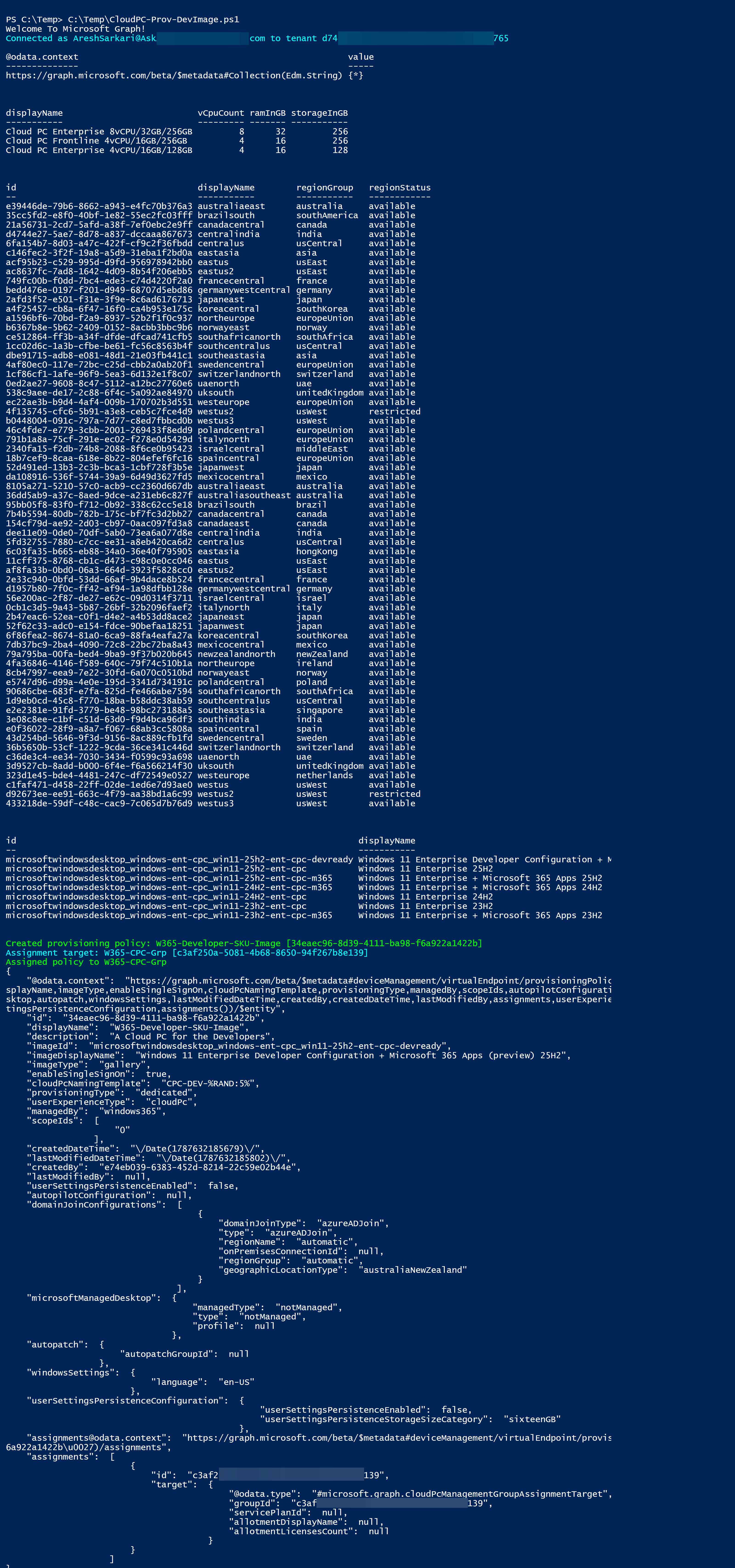
For validation I also read the provisioning policy back from Graph with the assignments expanded.
This is something I normally include in automation rather than simply assuming a successful HTTP POST means the complete configuration ended up exactly as expected.
Confirming the developer image in Intune
Back in Microsoft Intune:
Devices → Windows 365 → Provisioning policies
I can now see my two test provisioning policies using:
Windows 11 Enterprise Developer Configuration +Microsoft 365 Apps (preview) 25H2
and Windows 365 reports the image as:
Supported
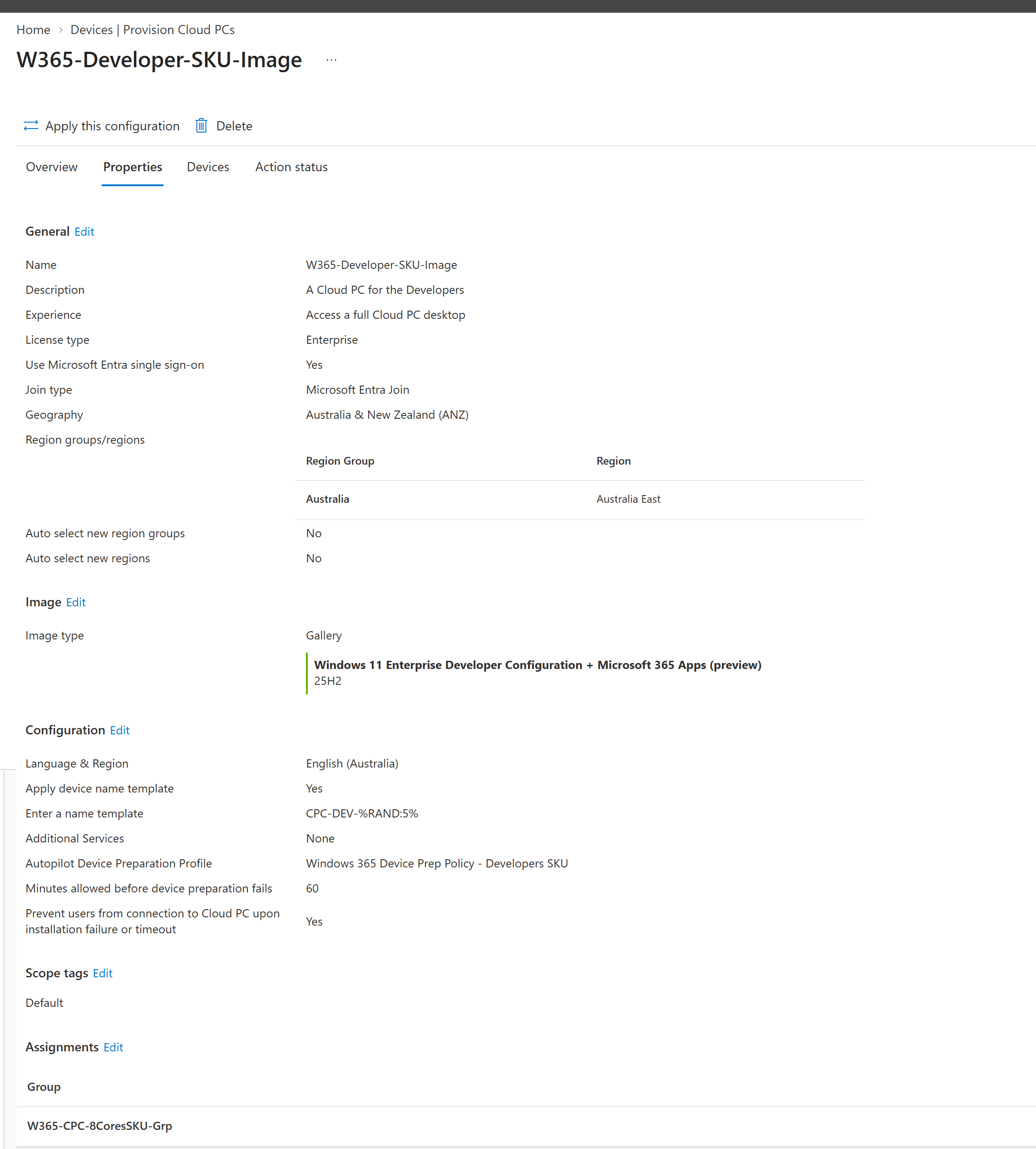
At this point we’ve created a completely standard Windows 365 provisioning policy — but with Microsoft’s new developer-ready image as the operating-system baseline.
So what’s actually installed inside the Developer Cloud PC?
This was the part I really wanted to inspect. According to Microsoft’s current Developer Configuration image documentation, the image contains significantly more than just VS Code and Git.
The Windows environment currently includes tooling such as:
| Area | Included tooling |
|---|---|
| Editor | Visual Studio Code |
| Source control | Git, GitHub tooling |
| Languages | Python, Node.js |
| Node ecosystem | npm, nvm |
| PowerShell | PowerShell 7 |
| Linux | WSL + Ubuntu |
| Azure | Azure CLI |
| .NET | .NET Runtime and .NET SDK |
| Python tooling | UV |
| Terminal | Intelligent Terminal |
| Unix tooling | Coreutils |
| Prompt | Oh My Posh |
| Windows development | WinApp CLI |
| Utilities | PowerToys |
| AI development | GitHub Copilot CLI |
Microsoft also preinstalls several VS Code extensions, including PowerShell, Python, WSL, GitHub pull-request tooling and Edge developer tooling.
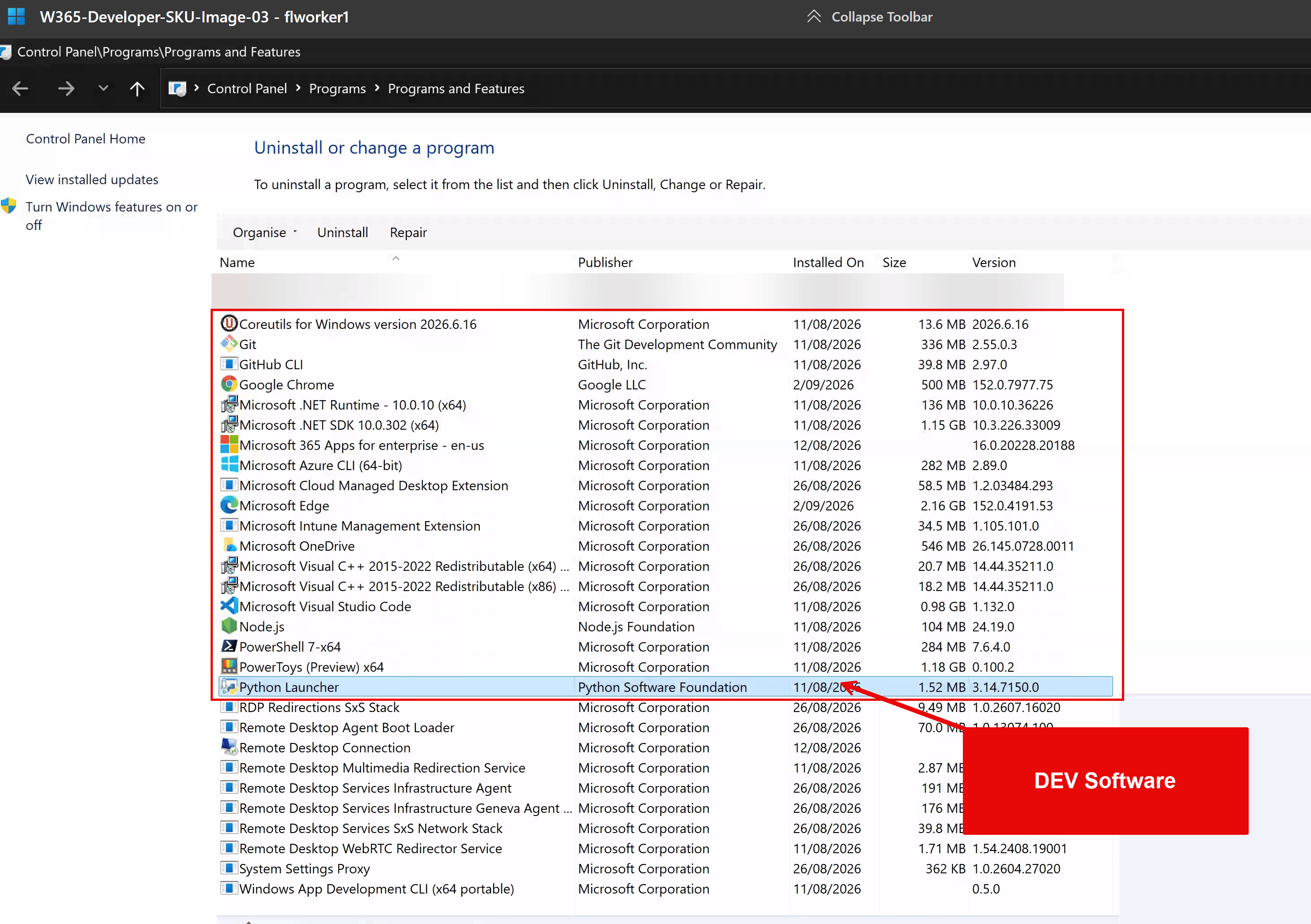
Microsoft updated the developer image again in August 2026 to add Intelligent Terminal and Coreutils, which is worth calling out because it demonstrates that this isn’t a one-time static developer image — the gallery image itself continues evolving.
Windows + Linux in the same developer workstation
One of the important parts of this image is WSL.
Microsoft doesn’t simply enable Windows Subsystem for Linux; the image includes:
WSL+Ubuntu+developer tooling inside the WSL environment
Microsoft also includes a Bash script used to configure the user environment inside Ubuntu.
That gives the developer a much more useful starting position:
Windows 11├── Visual Studio Code├── PowerShell 7├── Git├── Python├── Node.js├── Azure CLI├── .NET└── WSL └── Ubuntu ├── Git ├── Python ├── Node └── Developer tooling
For developers working across Windows, Linux, Azure and GitHub, this makes much more sense than treating the Cloud PC simply as another Windows desktop.
Final thoughts
I’ve been working with Windows 365 for quite some time, and this is one of the more interesting changes to the provisioning story for developer personas.
Previously, organisations basically had two choices:
Standard Microsoft image +install everything afterwards
or:
Build + patch + test +maintain your own custom image
The Developer Configuration image introduces a useful middle ground.
Microsoft maintains the generic developer foundation, while organisations can layer their corporate requirements through Intune and Windows Autopilot Device Preparation.
There are still things I want to see evolve particularly application lifecycle management for the preinstalled developer tools and the preview status means I wouldn’t treat this as a finished production solution yet.
Thanks,
Aresh Sarkari


Recent Comments