Archive | Horizon RSS feed for this section

Intermittent Clipboard issues on VMware Horizon virtual desktop

18 Apr

Recently, we had an issue within our environment where-in end-users complained of intermittently one-way clipboard not working(Virtual Desktop to Endpoint will fail). The tricky part here was it would happen intermittently to anyone without any set pattern.

Environment Details:
VMware Horizon 7.11
VMware App Volumes 2.18.1
VMware Dynamic Environment Manager 9.10
VMware Horizon Client 5.x

Process of elimination

  • We were not using the Horizon Blast GPO for setting the clipboard.
  • The clipboard was setup using DEM Horizon Smart Policies – Enabled Both Directions
  • Upgrade the Horizon Client to the latest version to remove any Client related issues
  • We already had the anti-virus process exclusion of VMwareViewClipboard.exe
  • We disabled the Writable Volumes, and the clipboard issue will never occur.

Resolution

The above test made it evident that something within the Writable Volumes was causing the intermittent clipboard issue. The next thing that came to mind is adding path/process exclusion within the snapvol.cfg. One may ask how did you determine that path, but recently we have had many application issues that needed exclusion to make them work.

What I didn’t know was which path or process, until the task manager showed a clipboard process for Horizon called – VMwareViewClipboard.exe and its Path – C:\Program Files\Common Files\VMware\Remote Experience\x64. I read many communities post having mentioned this process. However, I wasn’t sure if adding the entire path exclusion made sense as I could see many Horizon process *.exe and wasn’t sure what additional repercussions it can have. I went ahead, adding the below process exclusion.

exclude_process_name=VMwareViewClipboard.exe
Process exclusion in writable volumes snapvol.cfg

Post adding the exclusion, all the end-users with intermittent clipboard issues were always able to do two side clipboard. In this blog, I am not outlining the steps on how to add the snapvol.cfg exclusion as my ex-colleague Daniel Bakshi outlines on a VMware blog post on how to do it step by step.

Update 2nd May 2020
We had a VMware GSS support case open on the same issue, and they came back with a suggestion to exclude this registry path instead of the process exclusions. Note we been told there is no impact with process or registry, but its a good practice to do registry/path exclusions instead of the process. This registry/subkeys are responsible for the Clipboard – DEM Horizon Smart Policies.

exclude_registry=\REGISTRY\MACHINE\SOFTWARE\VMware, Inc.\VMware UEM
Process exclusion in writable volumes snapvol.cfg

I hope you will find this information useful if you encounter intermittent clipboard issues.

Thanks,
Aresh Sarkari

Black Screen on mobile devices during logon – VMware Horizon and VMware Workspace One

17 Dec

We had a strange issue in which end-users reported a black screen when they clicked on their Desktop tile in Workspace One portal on their mobile devices on Android and iOS. The moment they clicked on the endpoint the black screen would go away and it would give the logon banner and normal Windows 10 logon.

Usual Suspects

Our investigation led to Windows Logon Banner applied via the group policy causing the black screen. We were soon able to rule out by disabling the logon banner and the black screen persisted.
The black screen only appear on mobile devices. The Desktop/Laptops you didnt observe the issue.

EUC Stack

VMware Horizon 7.6
VMware App Volumes 2.14.2
VMware Identity Manager 3.3
VMware User Environment Manager 9.4
Windows 10 1803

Resolution

We managed to open the VMware GSS case and a lot of troubleshooting was carried out from re-running the VMware OSOT tool and changing the Power Configuration policy.

The final configuration that resolved the black screen issue:

Open the master image and run PowerShell with administrative rights and execute the following commands:

powercfg -change -monitor-timeout-ac 0
powercfg -change -monitor-timeout-dc 0

(Note – Here 0 means Never)

ScreenSettings

Power and Screen Settings – Windows 10

Make sure you restart the master template post implementing the commands . Take a snapshot and perform “Push-Image” operation in Horizon Administror console.

I hope you will find this information useful if you encounter the Black Screen issue. A big thanks to Manivannan Arul my teammate for his continoursly effort while troubleshooting with GSS.

Thanks,
Aresh Sarkari

Continue reading

VMware EUC – Horizon, UAG, VIDM and AppVolumes – NSX Load Balancing – Health Check Monitors

2 Feb

There is no single place to find a consolidated list of Load balancer health check monitors (aka Service Monitors in NSX) for the VMware EUC products:

I have been using VMware NSX load balancer across the board. The below details will provide an overview of what to enter for the health monitors. Note – If you are using something more meaningful  for your environment leave feedback in the comments section. I will try to implement the same and update the blog later.

VMware Unified Access Gateway (UAG)

Create a new Service Monitor under NSX and call is UAG_https_monitor. Refer to the screenshot for more details.

UAG Service Monitor

Send String: GET /favicon.ico
Response code: 200s

VMware Identity Manager or Workspace ONE Access

Create a new Service Monitor under NSX and call is VIDM_https_monitor. Refer to the screenshot for more details.

VIDM Service Monitor
Send String: GET /SAAS/auth/login
Response code: 200s

VMware Horizon Connection Servers

Update 13th Sep 2021 – For all Horizon version 7.10 and above please start using the following service monitor within NSX.

Send String: GET /favicon.ico
Response code: 200s

You can use this string for versions 7.7 or upto 7.10. Create a new Service Monitor under NSX and call is Horizon_https_monitor. Refer to the screenshot for more details.

image
Send String: GET /broker/xml/
Receive string: /styles/clientlaunch-default

VMware App Volumes

Create a new Service Monitor under NSX and call is AV_https_monitor. Refer to the screenshot for more details.

AV Service Monitor

I hope you will find these monitors useful in monitoring the VMware EUC products.

Thanks,
Aresh Sarkari

Poor man’s Samsung DEX HUB and VMware Horizon Advantage

22 Jun

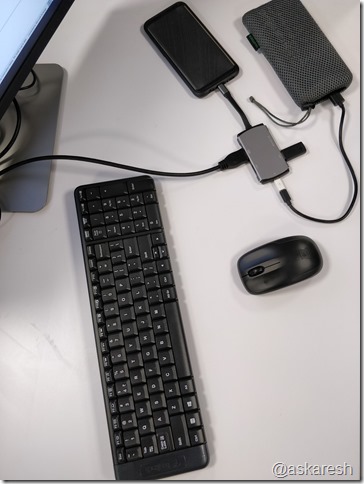
I had been intrigued by the Samsung DeX mode post its launch but didn’t have the courage to buy the 125$ (Rs. 10,000/- INR) Samsung DeX Station. I was on a look-out for an alternate Hub which could do the DeX mode on my Galaxy S8+ for a lot less. After searching @ AliExpress I finally managed to find a hub called EASYA Thunderbolt 3 USB C to HDMI Adapter DeX Mode for Samsung Galaxy S8/S9 which had some good positive reviews and for 33$

The moment of truth was to plug-in the Galaxy S8+ and try the DeX mode. Attempt-1: Managed to plug the phone to the hub and HDMI monitor as the output. Next thing I noticed was the screen mirror got enabled and DeX Mode pop-up wouldn’t come or get detected.

Attempt-2: Additional to the above I plugged in the Power in the USB-C 3.1 PD Port and magically the pop-up appeared on the phone “Start DeX Mode

If you don’t have the wireless mouse plugged in the entire Galaxy S8+ screen acts like a mouse trackpad which can come-in handy.

EASYA Thunderbolt 3 USB Type-C Hub To HDMI Adapter Dex Mode

Productivity with VMware Horizon:

The Horizon Client available on the Android Store has integration with DeX mode that enables you to use the Virtual Desktop in Full screen mode. I launch my Windows 10 Desktop and use it for an entire day. I was easily able to work on the following applications without any issues

  • Microsoft Outlook Client
  • Chrome and Firefox browser
  • Skype for Business (Audio/Chat Only) – Video was having issues
  • VMware Performance Tracker was showing the CPU and Network Bandwidth Usage graphs in real-time
  • There was no lag or any sign of slowness in any form
  • CPU Usage on the phone at an average of 4-6%

Known Observations:

  • The phone didn’t heat all day during its usage
  • The HUB was reasonably warm during the entire day usage
  • The limited DeX compatible Application works good in full-screen

More Picture on the Usage

DeX Mode and Horizon Client Launch
Horizon Client

DeX Mode and Full Screen – Windows 10 + Dell 24 inch Monitor
Full Screen - Windows 10 VDI

Hardware Setup – Logitech M140 Bluetooth Keyboard + Mouse
Hardware-Setup

More Documentation on Samsung DeX + VMware Horizon

Using Horizon Client with Samsung DeX
Enable the DeX Mode Auto Launch Feature

I hope you find this HUB review and DeX mode usage with Horizon useful and will be able to use it as a daily driver. Let me know if you would like to know more in the comments section

Thanks,
Aresh

vRealize Operations Manager – Monitor Management Packs for Availability and Notification

25 Apr

If you are using multiple vRealize Operations Manager (vROPS) – Management Packs like Horizon, VSAN, NSX and vCenter and want to monitor their availability of the adapter/POD in terms of whether they are “Collecting Data” and get notified via email when the collection of data stops due to unknown reasons. Then go ahead and read further.

If you don’t setup the monitoring one doesn’t get notified until someone logins to the vROPS Manager and see the adapter status physically.

Adapter Status:
vROPS VMware Horizon Management Pack

Collection State/Status:
vROPS - Hoirzon Adapter

To achieve the above its a 3 steps process. You will have to create the following:

  • Custom Symptom Definition
  • Custom Alert Definition
  • Custom Notification

Symptom Definitions

We will create four custom Symptom Definition (SD) for Horizon Adapter, Horizon POD as it collects data, vCenter instances and VSAN Adapter. Following are the SD combined:

Custom Symptom Definitions
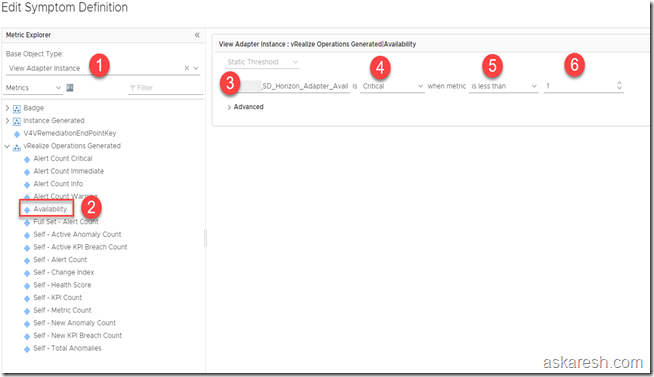
  • Horizon Adapter Instance
    • Open the vROPS Manager and navigate to Alerts – Symptom Definitions
    • Click on the +
    • Under the Base Object Type Select – View Adapter Instance
    • Under Metrics Select vRealize Operations Generated – Availability
    • Enter a Symptom Definition Name – SD_Horizon_Adapter_Avail
    • is – Critical
    • metric – is less than
    • Numeric Value – 1
    • Under Advance
      • Wait Cycle – 3
      • Cancel Cycle – 3
      • Recommended – The wait/cancel cycle of 3 means that in case of any failure user will be notified after 15 minutes (3 cycles x default 5 minutes data collection interval)
Symptom - View Adapter Instance
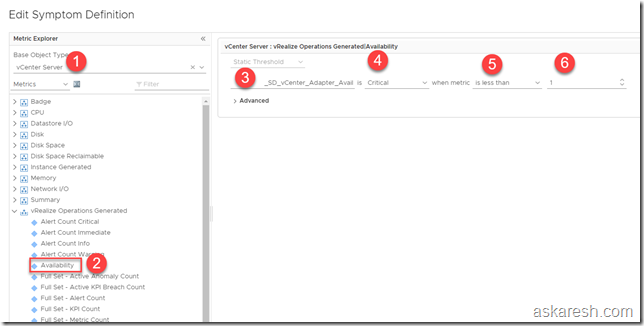
  • vCenter Adapter – vCenter

    • Open the vROPS Manager and navigate to Alerts – Symptom Definitions
    • Click on the +
    • Under the Base Object Type Select – vCenter Server
    • Under Metrics Select vRealize Operations Generated – Availability
    • Enter a Symptom Definition Name – SD_vCenter_Adapter_Avail
    • is – Critical
    • metric – is less than
    • Numeric Value – 1
    • Under Advance
      • Wait Cycle – 3
        • Cancel Cycle – 3
          • Recommended – The wait/cancel cycle of 3 means that in case of any failure user will be notified after 15 minutes (3 cycles x default 5 minutes data collection interval)
      Symptom - vCenter Adapter Instance
      • View POD

        • Open the vROPS Manager and navigate to Alerts – Symptom Definitions
        • Click on the +
        • Under the Base Object Type Select – View POD
        • Under Metrics Select vRealize Operations Generated – Availability
        • Enter a Symptom Definition Name – SD_View_POD_Avail
        • is – Critical
        • metric – is less than
        • Numeric Value – 1
        • Under Advance
          • Wait Cycle – 3
            • Cancel Cycle – 3
              • Recommended – The wait/cancel cycle of 3 means that in case of any failure user will be notified after 15 minutes (3 cycles x default 5 minutes data collection interval)
          Symptom - View POD

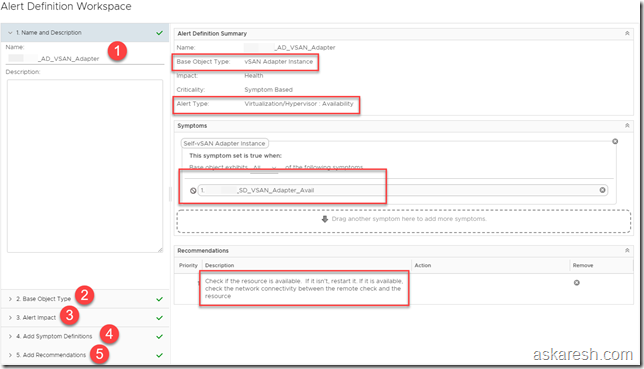
          • VSAN Adapter Instance
            • Open the vROPS Manager and navigate to Alerts – Symptom Definitions
            • Click on the +
            • Under the Base Object Type Select – VSAN Adapter Instance
            • Under Metrics Select vRealize Operations Generated – Availability
            • Enter a Symptom Definition Name – SD_VSAN_Adapter_Avail
            • is – Critical
            • metric – is less than
            • Numeric Value – 1
            • Under Advance
              • Wait Cycle – 3
                • Cancel Cycle – 3
                  • Recommended – The wait/cancel cycle of 3 means that in case of any failure user will be notified after 15 minutes (3 cycles x default 5 minutes data collection interval)
              Symptom - VSAN Adapter Instance

              Alert Definitions

              We will create four custom Alert Definition (AD) for Horizon Adapter, Horizon POD as it collects data, vCenter instances and VSAN Adapter. Following are the AD combined:

              Custom Alert Definitions
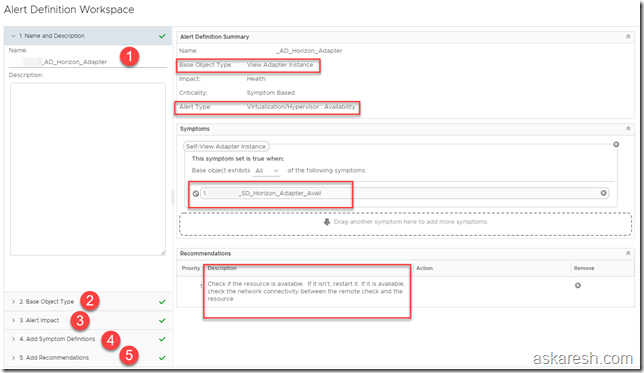
              • Horizon Adapter Instance
                • Open the vROPS Manager and navigate to Alerts – Alert Definitions
                • Click on the +
                • Enter a Name – AD_Horizon_Adapter
                • Under the Base Object Type Select – View Adapter Instance
                • Under the Alert Impact
                  • Impact – Health
                  • Criticality – Symptom Based
                  • Alert Type and Subtype – Virtualization/Hypervisor: Availability
                  • Wait Cycle – 1
                  • Cancel Cycle – 1
                • Under Add Symptom Definitions
                  • Defined on – Self
                  • Symptom Definition Type – Metric /Property
                  • In the search box enter the previously created Symptom Definition – SD_Horizon_Adapter_Avail
                • Under Add Recommendations – Search and Select “Check if the resources are available. If it isn’t restart it. If it is available check the network connectivity between the remote checks and the resource
              Alert - Horizon Adapter


              • vCenter Adapter Instance
                • Open the vROPS Manager and navigate to Alerts – Alert Definitions
                • Click on the +
                • Enter a Name – AD_vCenter_Adapter
                • Under the Base Object Type Select –  vCenter Server
                • Under the Alert Impact
                  • Impact – Health
                  • Criticality – Symptom Based
                  • Alert Type and Subtype – Virtualization/Hypervisor: Availability
                  • Wait Cycle – 1
                  • Cancel Cycle – 1
                • Under Add Symptom Definitions
                  • Defined on – Self
                  • Symptom Definition Type – Metric /Property
                  • In the search box enter the previously created Symptom Definition – SD_vCenter_Adapter_Avail
                • Under Add Recommendations – Search and Select “Check if the resources are available. If it isn’t restart it. If it is available check the network connectivity between the remote checks and the resource
              Alert - vCenter Adapter
              • View POD
                • Open the vROPS Manager and navigate to Alerts – Alert Definitions
                • Click on the +
                • Enter a Name – AD_View_PODS
                • Under the Base Object Type Select –  View Pod
                • Under the Alert Impact
                  • Impact – Health
                  • Criticality – Symptom Based
                  • Alert Type and Subtype – Virtualization/Hypervisor: Availability
                  • Wait Cycle – 1
                  • Cancel Cycle – 1
                • Under Add Symptom Definitions
                  • Defined on – Self
                  • Symptom Definition Type – Metric /Property
                  • In the search box enter the previously created Symptom Definition – SD_View_PODS_Avail
                • Under Add Recommendations – Search and Select “Check if the resources are available. If it isn’t restart it. If it is available check the network connectivity between the remote checks and the resource
              Alert - View POD
              • VSAN Adapter Instance
                • Open the vROPS Manager and navigate to Alerts – Alert Definitions
                • Click on the +
                • Enter a Name – AD_VSAN_Adapter
                • Under the Base Object Type Select –  vSAN Adapter Instance
                • Under the Alert Impact
                  • Impact – Health
                  • Criticality – Symptom Based
                  • Alert Type and Subtype – Virtualization/Hypervisor: Availability
                  • Wait Cycle – 1
                  • Cancel Cycle – 1
                • Under Add Symptom Definitions
                  • Defined on – Self
                  • Symptom Definition Type – Metric /Property
                  • In the search box enter the previously created Symptom Definition – SD_VSAN_Adapter_Avail
                • Under Add Recommendations – Search and Select “Check if the resources are available. If it isn’t restart it. If it is available check the network connectivity between the remote checks and the resource
              Alert - VSAN Adpater

              Notifications

              We will create four Notification Rules for Horizon Adapter, Horizon POD as it collects data, vCenter instances and VSAN Adapter. Following are the Rules for Email Alerts combined:

              Custom Notification Rules
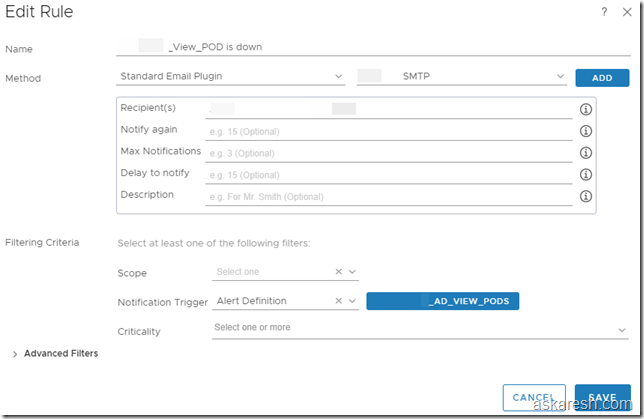
              • Rule – Horizon Adapter Instance is down
                • Open the vROPS Manager and navigate to Alerts – Notification Settings
                • Click on the +
                • Enter a Name – _Horizon_Adapter is down
                • Under Method Select – Standard Email Plugin
                • Instance – SMTP (previous configured)
                • Enter Recipients – Email Address
                • Notification Trigger – Alert Definition
                • Add the previously created _AD_Horizon_Adapter
              Notification - Horizon Adapter

              • Rule – vCenter Adapter Instance is down
                • Open the vROPS Manager and navigate to Alerts – Notification Settings
                • Click on the +
                • Enter a Name – _vCenter_Adapter is down
                • Under Method Select – Standard Email Plugin
                • Instance – SMTP (previous configured)
                • Enter Recipients – Email Address
                • Notification Trigger – Alert Definition
                • Add the previously created _AD_vCenter_Adapter
              Notification - vCenter Adapter

              • Rule – View POD is down
                • Open the vROPS Manager and navigate to Alerts – Notification Settings
                • Click on the +
                • Enter a Name – _View_POD is down
                • Under Method Select – Standard Email Plugin
                • Instance – SMTP (previous configured)
                • Enter Recipients – Email Address
                • Notification Trigger – Alert Definition
                • Add the previously created _AD_View_POD
              Notification - View POD

              • Rule – VSAN Adapter is down
                • Open the vROPS Manager and navigate to Alerts – Notification Settings
                • Click on the +
                • Enter a Name – _VSAN_Adapter is down
                • Under Method Select – Standard Email Plugin
                • Instance – SMTP (previous configured)
                • Enter Recipients – Email Address
                • Notification Trigger – Alert Definition
                • Add the previously created _AD_VSAN_Adapter
              Notification - VSAN Adapter

              I hope you will find this post useful and will help you improvise on monitoring/alerting of your vROPS Management Packs. A big thanks to Gagik Manukyan in demonstrating the ability to configure this in our internal setup.

              Thanks,
              Aresh Sarkari

              VMware Horizon TrueSSO – Configuration for High Availability and Redundancy

              13 Apr

              In this post I will demonstrate the configuration that are required to deploy the VMware Enrollment Servers for High availability and redundancy. This includes two Certificate Authority CA’s and Enrollment Servers

              TrueSSO Availability and Redundancy


              My colleague Tarique Chowdhury has an excellent post on the TrueSSO Lab Setup. However in that deployment it talks about a single Enrollment Server and Certificate Authority Server.

              This post is not a replacement of the Setting Up TrueSSO guide on VMware Pubs. However the below mentioned two sections complement during the configurations for everything else follow the setup guide/blogs:

              Certificate deployment – Enrollment Agent (Computer).

              Deploying the Enrollment Agent (Computer) certificate onto this server, we are authorizing this ES to act as an Enrollment Agent and generate Certificates on behalf of users.

              Both the Certificate Authority Server Enrollment Agent (Computer) certificate needs to be added. They are added one-by-one. The Personal –> Certificate store should look like below on the ES:

              Enrollment Agent (Computer)

              Configure TrueSSO on the Horizon Connection Servers:

              Step1: Adding both the Enrollment Server (ES) – Adding the ES to the environment, we are able to query the ES about the domain and relevant True SSO info.

              vdmutil --authAs username --authDomain askaresh --authPassword password --truesso --environment --add –enrollmentServer tsso1.askaresh.com,tsso2.askaresh.com

              Adding ES

              Step2 – List both the newly deployed Enrollment Server – We will get info about various components of the environment which will be useful for configuring True SSO.

              vdmutil --authAs username –authDomain askaresh --authPassword password --truesso --environment --list --enrollmentServer tsso1.askaresh.com  --domain askaresh.com

              vdmutil --authAs username –authDomain askaresh --authPassword password --truesso --environment --list --enrollmentServer tsso2.askaresh.com  --domain askaresh.com

              Listing ES

              Step3 – Adding the Connector for TrueSSO – A True SSO Connector is a configuration set where we specify details like ES(s), CA(s) and a Certificate Template to use for a certain Domain. When a Horizon CS gets a request to launch a desktop for an AD user, it will look up True SSO Connector for the domain the user belongs to and will use the components as specified to obtain a Certificate on behalf of the user.

              vdmutil --authAs username --authDomain askaresh --authPassword password --truesso --create --connector --domain askaresh.com --template TrueSSO --primaryEnrollmentServer tsso1.askaresh.com –secondaryEnrollmentServer tsso2.askaresh.com --certificateServer MSSUBCA01-CA,MSSUBCA02-CA --mode enabled

              TrueSSO Connector

              Step4 – List the SAML Authenticator available in Horizon environment – A SAML Authenticator contains the trust and metadata exchange between Horizon View and vIDM. To use True SSO, we need to identify the correct SAML Authenticator and enable True SSO.

              vdmutil --authAs username --authDomain askaresh --authPassword password --truesso --list --authenticator

              Listing SAML

              Step5 – Enable TrueSSO for the SAML Authenticator

              vdmutil --authAs username --authDomain askaresh --authPassword password --truesso --authenticator --edit --name VIDM-PROD --truessoMode ENABLED

              Enable TrueSSO

              Step6 – Check the status on the Horizon Administrator Dashboard
              TrueSSO Dashboard

              I hope you find these steps useful during the TrueSSO Availability and Redundancy configurations.

              Thanks,
              Aresh

              Automating Desktop Pool creation using PowerCLI – VMware Horizon 7.x

              17 Jan

              The Desktop Pool Creation using PowerCLI and JSON file is by far the most powerful and advance way of creating desktop pools in Horizon 7.x in a automated way.

              Before you begin with the script and JSON file make sure you have read this blog post “Automating VMware Horizon 7 with VMware PowerCLI 6.5” by Graeme Gordon it explains step by step how to prepare machine and execute the PowerCLI.

              The following is the script (Save as desktoppool.ps1) you will need to execute this script for invoking the desktop pool creation using the advanced functions of the module – New-HVPool -spec ‘path to InstantClone.json file’

              PowerCLI Script for Desktop Pool:

              ################################################################################
              # Create a Linked Clone Desktop Pool in Horizon using PowerCLI and Defining parameters in JSON
              ################################################################################

              #region variables
              ################################################################################
              #                                    Variables                                 #
              ################################################################################
              $cs = ‘cs1-1.domain.com’ #Horizon Connection Server (CS)
              $csUser= ‘aresh’ #User account to connect to CS make sure you have necessary permissions
              $csPassword = ‘abc1234’ #Password for user to connect to Connection Server
              $csDomain = ‘domain’ #Domain for user to connect to Connection Server
              #endregion variables

              #region initialize
              ################################################################################
              #                                    Initialize                                #
              ################################################################################
              # — Initialize All PowerCLI Modules —
              #Importing the Hv.Helper Module for Horizon
              Get-Module -ListAvailable ‘VMware.Hv.Helper’ | Import-Module

              # Connect to Horizon Connection Server API Service
              $hvServer1 = Connect-HVServer -Server $cs -User $csUser -Password $csPassword -Domain $csDomain

              # — Display Available Methods for interacting with the API Service API Service —
              $Services1= $hvServer1.ExtensionData

              #endregion initialize

              #region logic
              ################################################################################
              #                                Main-Logic                                    #
              ################################################################################

              # — Create the pool —
              New-HVPool -spec ‘C:\temp\DesktopPool\LinkedClone.json’

              # — Disconnnect from Horizon API Service —
              Disconnect-HVServer -Server $cs -Confirm
              #endregion logic

              Now let’s take a look at the JSON file for Linked Clone Desktops as all the advanced parameters for the desktop pool creation are defined here. The effort of entering the parameters needs to be performed once usually 70% of parameters are standard across all the pools. During the new pool creation only 5-7 parameters needs to change and rest can remain as-is

              Note – I have entered parameters based on my requirements feel free to modify the values. (Copy/paste the below into a JSON editor to make sure the editing is in correct format. Save the file as LinkedClone.json):

              Linked Clone JSON – (All parameters should be configured through JSON)

              {
                   “Base”: {
                       “Name”: “Aresh-Test”,
                       “DisplayName”: “Aresh linkedclone pool”,
                       “AccessGroup”: “Root”,
                       “Description”: “Created linked clone pool from PowerCLI”
                   },
                   “DesktopSettings”: {
                       “enabled”: true,
                       “deleting”: false,
                       “connectionServerRestrictions”: null,
                       “logoffSettings”: {
                           “powerPolicy”: “TAKE_NO_POWER_ACTION”,
                           “automaticLogoffPolicy”: “AFTER”,
                           “automaticLogoffMinutes”: 4320,
                           “allowUsersToResetMachines”: true,
                           “allowMultipleSessionsPerUser”: false,
                           “deleteOrRefreshMachineAfterLogoff”: “REFRESH”,
                           “refreshOsDiskAfterLogoff”: “NEVER”,
                           “refreshPeriodDaysForReplicaOsDisk”: 5,
                           “refreshThresholdPercentageForReplicaOsDisk”: 10
                       },
                       “displayProtocolSettings”: {
                           “supportedDisplayProtocols”: [“RDP”,
                           “PCOIP”,
                           “BLAST”],
                           “defaultDisplayProtocol”: “BLAST”,
                           “allowUsersToChooseProtocol”: true,
                           “pcoipDisplaySettings”: {
                               “renderer3D”: “DISABLED”,
                               “enableGRIDvGPUs”: false,
                               “vRamSizeMB”: 96,
                               “maxNumberOfMonitors”: 2,
                               “maxResolutionOfAnyOneMonitor”: “WQXGA”
                           },
                           “enableHTMLAccess”: true
                       },
                       “flashSettings”: {
                           “quality”: “NO_CONTROL”,
                           “throttling”: “DISABLED”
                       },
                       “mirageConfigurationOverrides”: {
                           “overrideGlobalSetting”: false,
                           “enabled”: false,
                           “url”: null
                       }
                   },
                   “Type”: “AUTOMATED”,
                   “AutomatedDesktopSpec”: {
                       “ProvisioningType”: “VIEW_COMPOSER”,
                       “VirtualCenter”: “10.x.x.x”,
                       “UserAssignment”: {
                           “UserAssignment”: “FLOATING”,
                           “AutomaticAssignment”: true
                       },
                       “VmNamingSpec”: {
                           “NamingMethod”: “PATTERN”,
                           “PatternNamingSettings”: {
                               “NamingPattern”: “HZ-W10-{n:fixed=3}”,
                               “MaxNumberOfMachines”: 1,
                               “NumberOfSpareMachines”: 1,
                               “ProvisioningTime”: “UP_FRONT”,
                               “MinNumberOfMachines”: null
                           },
                           “SpecificNamingSpec”: null
                       },
                       “VirtualCenterProvisioningSettings”: {
                           “EnableProvisioning”: true,
                           “StopProvisioningOnError”: true,
                           “MinReadyVMsOnVComposerMaintenance”: 0,
                           “VirtualCenterProvisioningData”: {
                               “Template”: null,
                               “ParentVm”: “W101607-STD1”,
                               “Snapshot”: “v1”,
                               “Datacenter”: “vRack-Datacenter”,
                               “VmFolder”: “GM_MasterImages”,
                               “HostOrCluster”: “vcore1c2-0-cluster”,
                               “ResourcePool”: “vcore1c2-0-cluster”
                           },
                           “VirtualCenterStorageSettings”: {
                               “Datastores”: [{
                                   “Datastore”: “vsanDatastore”,
                                   “StorageOvercommit”: “UNBOUNDED”
                               }],
                               “UseVSan”: true,
                               “ViewComposerStorageSettings”: {
                                   “UseSeparateDatastoresReplicaAndOSDisks”: false,
                                   “ReplicaDiskDatastore”: null,
                                   “UseNativeSnapshots”: false,
                                   “SpaceReclamationSettings”: {
                                       “ReclaimVmDiskSpace”: false,
                                       “ReclamationThresholdGB”: null,
                                       “BlackoutTimes”: null
                                   },
                                   “PersistentDiskSettings”: {
                                       “RedirectWindowsProfile”: false,
                                       “UseSeparateDatastoresPersistentAndOSDisks”: null,
                                       “PersistentDiskDatastores”: null,
                                       “DiskSizeMB”: null,
                                       “DiskDriveLetter”: null
                                   },
                                   “NonPersistentDiskSettings”: {
                                       “RedirectDisposableFiles”: false,
                                       “DiskSizeMB”: null,
                                       “DiskDriveLetter”: null
                                   }
                               },
                               “ViewStorageAcceleratorSettings”: {
                                   “useViewStorageAccelerator”: true,
                                   “viewComposerDiskTypes”: “OS_DISKS”,
                                   “regenerateViewStorageAcceleratorDays”: 7,
                                   “BlackoutTimes”: null
                               }
                           },
                           “VirtualCenterNetworkingSettings”: {
                               “Nics”: [{
                                   “Nic”: “nicName”,
                                   “NetworkLabelAssignmentSpecs”: [{
                                       “Enabled”: false,
                                       “networkLabel”: null,
                                       “maxLabelType”: null,
                                       “maxLabel”: null
                                   }]
                               }]
                           }
                       },
                       “VirtualCenterManagedCommonSettings”: {
                           “TransparentPageSharingScope”: “VM”
                       },
                       “CustomizationSettings”: {
                           “CustomizationType”: “QUICK_PREP”,
                           “DomainAdministrator”: “viewcomposer-svc”,
                           “AdContainer”: “OU=HZ-AWF,OU=BLR,OU=Computers”,
                           “ReusePreExistingAccounts”: false,
                           “NoCustomizationSettings”: null,
                           “SysprepCustomizationSettings”: {
                               “customizationSpec”: null
                           },
                           “QuickprepCustomizationSettings”: {
                               “PowerOffScriptName”: null,
                               “PowerOffScriptParameters”: null,
                               “PostSynchronizationScriptName”: null,
                               “PostSynchronizationScriptParameters”: null
                           },
                           “CloneprepCustomizationSettings”: null
                       }
                   },
                   “ManualDesktopSpec”: null,
                   “RdsDesktopSpec”: null,
                   “GlobalEntitlementData”: null,
                   “NetBiosName”: “domain”
              }

              The parameters are self explanatory they are the exact same shown in the Horizon Administrator UI during Desktop Pool Creation. If you need any additional information on the parameters refer to the VMware View API explorer for more details.

              I hope you will find this script and method useful in Automating the Desktop Pool Creation in Horizon. If you have further questions leave a comment or DM on twitter.

              Thanks,
              Aresh Sarkari

              Troubleshooting Horizon TrueSSO aka Horizon Enrollment Server like a Ninja!

              10 Oct

              If you have deployed Horizon TrueSSO feature within your environment. Then the most obvious question is how do you troubleshoot during issues? Let me give you some tips and tricks around troubleshooting TrueSSO aka Enrollment Server feature:

              • If you have two teams split one team managing the Active Directory/Certificate Services and other team managing Horizon infrastructure. Then following are the tips for the Horizon Admins. Install the Microsoft RSAT tools on your domain joined machine or Enrollment Servers and install the AD Certificate Services Tools. This will provide you the ability to see the following snap-ins in read-only mode:
                • Enterprise PKI – Allows you to check the CDP and CRL and Issuing CA Status
                • Certificate Templates – TrueSSO, Enrollment Agent (Computer) Templates etc.
              SNAGHTML6730c9ff

              • Make sure to Enable the Trace logging on the Enrollment Servers and Horizon Agent (within master image) during troubleshooting. It will provide additional details on the error message
                • [HKEY_LOCAL_MACHINE\SOFTWARE\VMware, Inc.\VMware VDM]
                  “debugEnabled”=”true”
                  “traceEnabled”=”true”
                • How to know whether the end-users logged in via TrueSSO – Interactive_SmartCard_Logon will be visible in the Horizon Agent (if Trace Log is enable)image
                • If TrueSSO is not used and SAML – CLEAR(Text)_PASSWORD is used you will receive the following in Horizon Agent logs (if trace is enable
                  image
              • If you have two Issuing CA’s for High Availability and redundancy then make sure you import the TrueSSO template by Clicking Certificate Templates > New > Certificate Template to Issue. Select “TrueSsoTemplate” from the “Enable Certificate Templates” dialog and press “OK.” on the other Issuing CA. If you skip this step it will complain in Horizon Administrator dashboard – The primary and secondary enrollment server is not connected to the certificate servers “XXXXXX
              • Read and learn to use the VMWare Fling es_diag.exe it will provide a lot of information from the Horizon Enrollment Server stand point and equip you to troubleshoot issues with Certificate Servers.
                • /ListConfigs
                • /ListEnvironment
                • /EnrollmentTest

              My colleague Tarique Chowdhury has posted few troubleshooting steps in the following post under Section – Testing it will provide more details as to what to look in the logs.

              Log Entries 1
              Log Entries 2

              I hope you find this post useful during the Horizon TrueSSO aka Enrollment Server troubleshooting.

              Thanks,
              Aresh Sarkari
              Top 10 lessons during Horizon TrueSSO deployment aka Horizon Enrollment Servers

              6 Oct

              Recently got an opportunity to deploy the VMware Horizon TrueSSO within our environment. TrueSSO provides user with the True SSO (single sign-on) feature, after users log in to VMware Identity Manager (WorkSpaceOne) using a RSA SecurID authentication(optional), users are not required to enter Active Directory credentials in order to use virtual desktop or hosted application.

              Let me share my top 10 lessons learnt from the deployment:

              1. In the production deployment recommend to size the Enrollment Server Windows VM as same as the Connection Server(ES role is not very resource intensive)
                • CPU – 4 vCPU
                • Memory – 10 GB RAM
                • HDD – 80 GB
              2. Make sure the “Group Scope” is selected as “Universal” for the  Active Directory Group in which the Enrollment Server – Computer Account is added
              3. On the newly created TrueSSO template (SmartCard Login and Client Authentication) make sure under the Security Tab “Authenticated Users” group has Read permissions and The Active Directory group for the Enrollment Servers (Computer Account) has Read and Enroll
              4. If you are deploying more than one Enrollment Server go in the Horizon ADAM database and add the following value to load balance between two Enrollment Servers:
                cs-view-certsso-enable-es-loadbalance=true
              5. For Large scale AD deployments, it is recommend to add the registry for “ConnectToDomains”=domainname.com
                HKEY_LOCAL_MACHINE\SOFTWARE\VMware, Inc.\VMware VDM\Enrollment Service

                ConnectToDomain
              6. Make Sure the template to be used for TrueSSO, you have selected the check box “Do not store certificate and request in the CA database” and run the following command on the CA server. (without quotes)
                “certutil –setreg DBFlags +DBFLAGS_ENABLEVOLATILEREQUESTS”

                TrueSSO Template Properties
              7. To support Smartcard Logon the following Requirements must be met by the Domain Controller or Kerberos Authentication Certificate:
                • Template name should be Domain Controller or Kerberos Authentication Certificate
                  Kerberos Template Properties
                • DNS Name should be selected under Subject Name
                  Subject Name Properties
                • Key Usage Extension should be “Digital Signature” and “Key Enciphement
                  Key Usage Extension
              8. Make sure the the CA issuing Domain Controller Certificates has the following requirements met (Use GPO’s to deploy the below)
                • Add the Root Certificate to the Enterprise NTAuth Store
                • Add the Root Certificate to Trusted Root Certification Authorities
                • Add an Intermediate Certificate to Intermediate Certification Authorities
              9. Use the True SSO Diagnostic Utility Fling to troubleshoot Enrollment Server, Active Directory PKI Settings and Enterprise CA
              10. On the Domain Controllers under the registry location HKEY_LOCAL_MACHINE\SOFTWARE\Microsoft\EnterpriseCertificates\NTAuth\Certificates
                A key with the “Issuing CA Certificate” thumbprint needs to be created on all the domain controllers participating in the TrueSSO. Ideally if the Step 7&8 are done correctly you should not run into this problem. (In our case we had to open-up a Microsoft Case to get this resolved as we were receiving KDC errors.)

              My colleague Tarique Chowdhury has written three awesome blog post on the TrueSSO feature make sure to check them out:

              Introduction https://blogs.vmware.com/euc/2016/03/true-sso-single-sign-on-view-identity-manager-authenticate.html

              Advance https://blogs.vmware.com/euc/2017/02/horizon-7-sso-advanced-features.html

              Setting up in Labhttps://blogs.vmware.com/euc/2016/04/true-sso-setting-up-in-a-lab.html

              I hope you find this post useful during the Horizon TrueSSO deployment

              Thanks,
              Aresh Sarkari

              Horizon 7.2 – RDS Farm with View Composer fails on “Customizing”

              21 Jul

              While creating a RDSH Farm in Horizon 7.2 using View Composer – Linked Clones and Custom Specification Manager the creation would fail on “Customization” within the View Administrator console. Upon investigation within the vCenter the Windows Servers 2012 R2 RDS Session host VM’s where not getting a valid IP and receiving the169.x.x.x APIPA addresses.

              After researching quite a bit the most common solution to the problem was:

              • Un-install and re-install vmwaretools
              • Un-install and re-install Horizon Agent 7.2 on RDS Master Image

              After performing the above two steps the issue completely changed from getting 169.x.x.x APIPA address to a proper DHCP server routable address. However, we are getting a different error this time:

              Windows could not finish configuring the system after a generalized sysprep”.

              windows error-sysprep

              Final Solution

              Within the master image we were using the MacAfee VSE Agent Patch 7 as the antivirus protection. This particular version was causing the issue with the sysprep to fail during customization.

              After following the below MacAfee KB and installing VSE Patch 9 the error was resolved and customizing of the RDS VM as per the Custom Specification Manager was successful.

              Reference Link:
              Windows could not finish configuring the system (Sysprep fails when VirusScan Enterprise Patch 7/8 is included in a Windows installation image)

              I hope this solution will save time to get the Horizon 7.2 RDSH Farm created quickly.

              Thanks,
              Aresh